
In this edition of the 🧭 Microsoft 365 Compass 🧭 newsletter, we're stepping outside the Microsoft 365 ecosystem for a moment to spotlight a tool I've been testing that I think a lot of you will find genuinely useful, especially if you're regularly documenting processes or creating guides for your team.
From time to time, I like to share tools I discover and put through their paces that have real potential to save time and reduce friction, particularly for people working in Microsoft 365 environments. Today, that tool is Tango.
I came across Tango while looking for a faster way to answer one of the most common questions I get from clients in my Microsoft 365 training practice: "Can you just show me step by step how to do this?" Creating those guides manually takes time. Screenshots, annotations, writing out each step. It adds up. Tango eliminates most of that work entirely.
What Is Tango?
Tango is a free browser extension that automatically builds a step-by-step how-to guide as you perform a task in your browser. You click through a process once, and Tango captures every step with a screenshot, auto-titles each action, and groups related steps together intelligently.
Think of it as a co-pilot that watches what you do and writes the documentation for you, in real time.
You do not need to write a single line, take a single screenshot manually, or use any third-party annotation tool. By the time you finish the task, your guide is already built.
How It Works in Practice
Getting started is straightforward. You head to tango.ai, sign up for a free account, and install the browser extension. Once it is added, Tango brings you directly into your dashboard.
From there, the workflow is simple:
- Open the web app you want to document (in the example below, SharePoint Online in the browser)
- Click the Tango icon in your toolbar to open the side pane
- Click Start Capture
- Perform the task as you normally would
- Click the checkmark when you are done
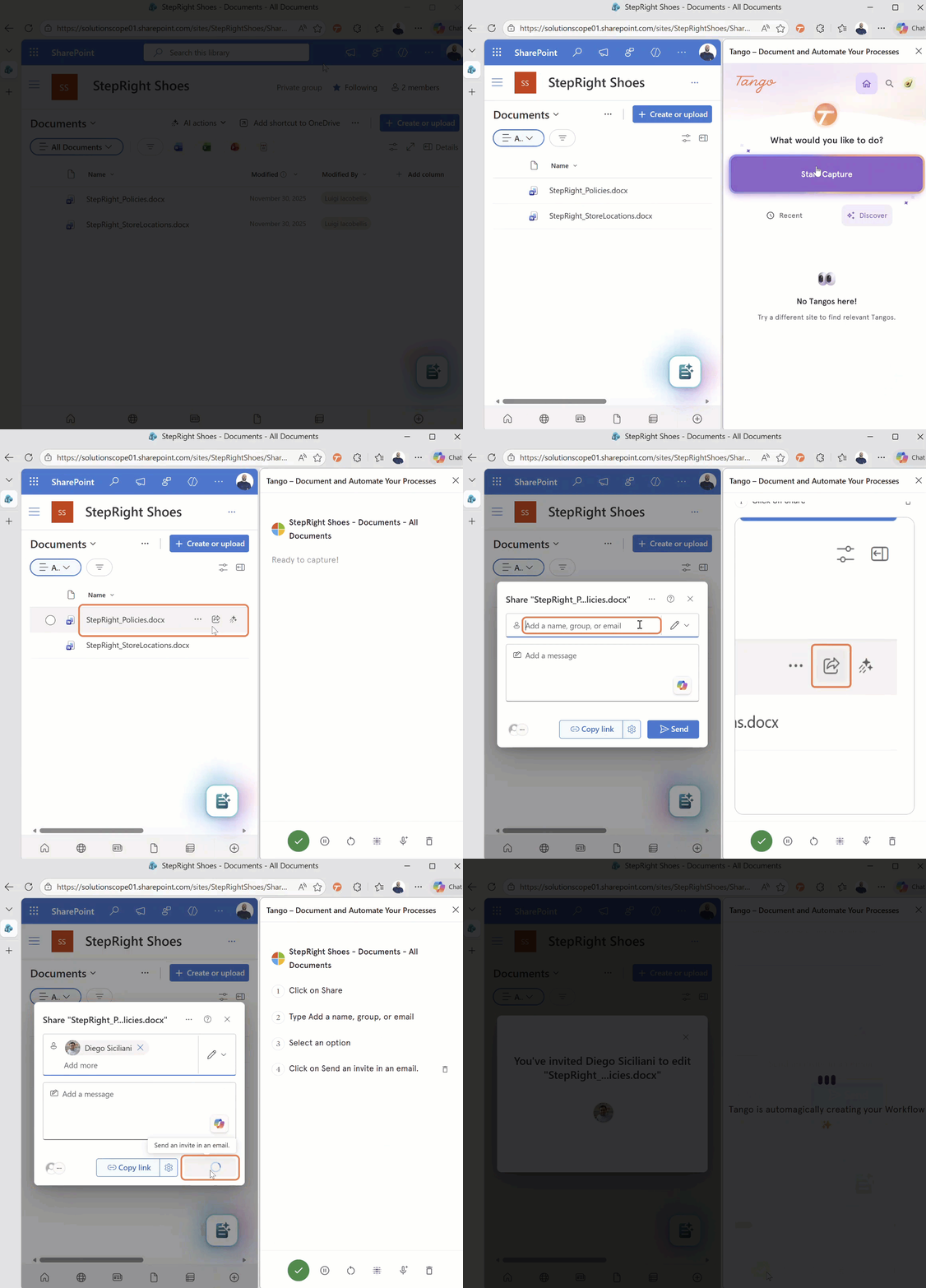
As you move through each step, Tango highlights the elements you interact with in orange and records a screenshot of each action in real time. It also types out what you did, so by the end of the capture, each step already has a description attached to it.
Once the capture is complete, Tango brings you into an editor where you can clean up step descriptions, toggle between showing a field name or the exact value a user typed, and annotate screenshots directly in the browser. No third-party tools needed.
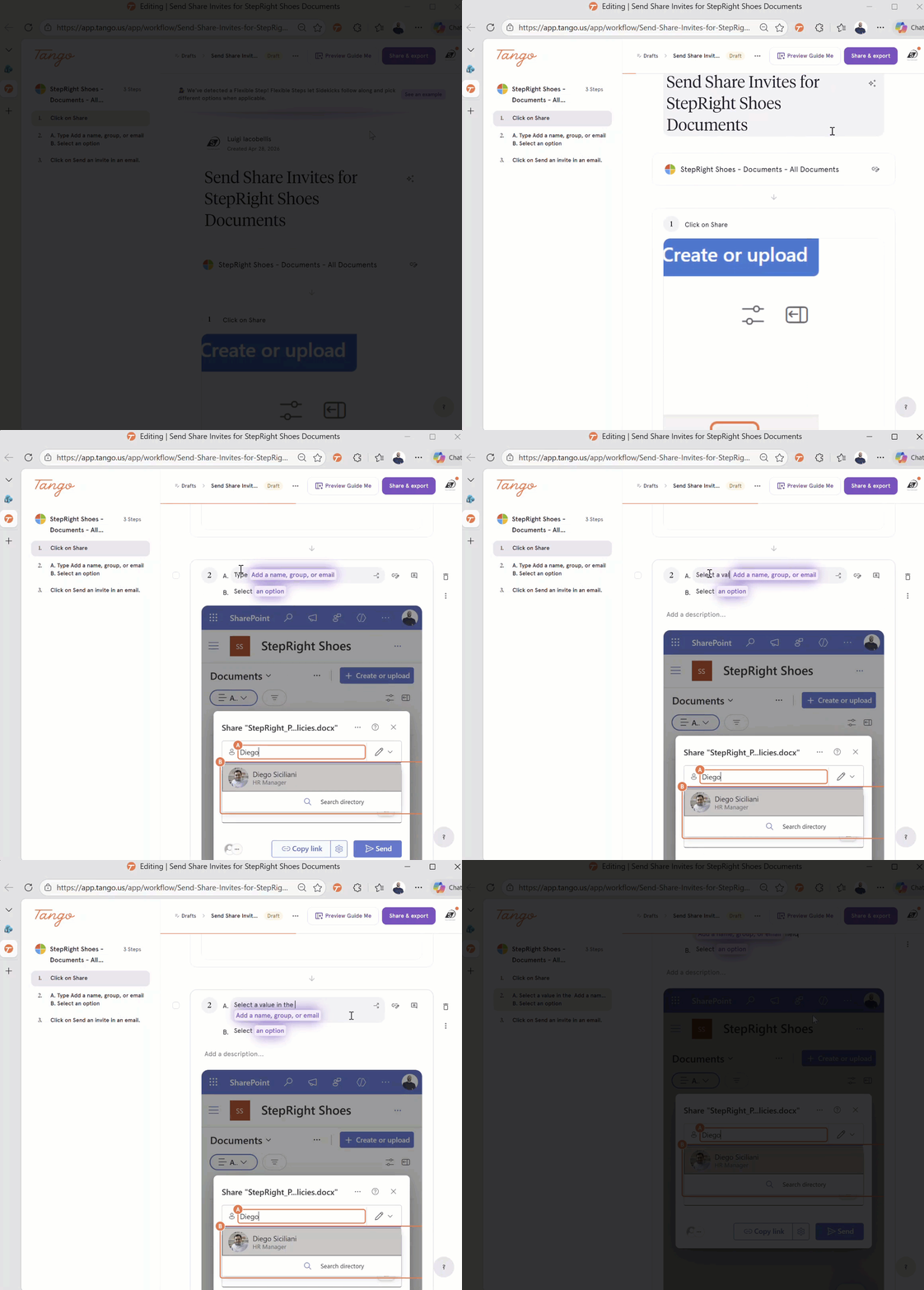
Want to See How It All Works?
Once your guide is built, Tango gives you two options worth knowing about. The first is Guide Me, an interactive walkthrough that loads the actual application in your browser and provides on-screen callouts pointing to exactly where the user needs to click at each step. For training and onboarding, it is a tangible step up from handing someone a static document. The second is a clean PDF export that includes all steps and screenshots, ready to share without any additional formatting on your end. You can also share via link, embed code, or HTML and Markdown if you want to drop it into an existing knowledge base like SharePoint or Notion.
I have published a full tutorial on my YouTube channel where I walk through all of this from start to finish using Microsoft Teams as the demonstration, including the Guide Me walkthrough, the PDF export, and everything in between.
👇Watch the full Tango tutorial on YouTube👇
|

Why This Is Relevant for Microsoft 365 Users
A lot of the work I do with clients involves documenting Microsoft 365 processes so teams can follow them consistently, whether that is setting up a new Team, configuring SharePoint permissions, or walking through a Power Automate flow. Traditionally, that means screen captures, annotations, and a fair amount of writing.
Tango reduces that process significantly. And because it works inside the browser, it captures any web-based Microsoft 365 app, including Teams, SharePoint, Outlook on the web, and the Microsoft 365 admin center.
Note: Tango works in the browser. If your organization primarily uses desktop versions of Microsoft 365 apps, you will want to test it with the web versions of those tools.
Try It for Free
Tango has a free plan that gives you full access to the core capture and export features. No credit card required. If you want to give it a try, you can sign up at tango.ai and have your first guide built in minutes.
🧠 Final Thoughts
Tango is one of those tools where the value becomes obvious the moment you use it. The first time I finished a capture and saw a fully structured, screenshot-rich guide waiting for me in the editor, it felt like a genuine unlock. For anyone who spends meaningful time documenting processes for clients or colleagues, this is worth testing. My one hope as the tool evolves is deeper integration with Microsoft 365's native knowledge tools, like Viva Learning or SharePoint, so that guides can flow directly into the places where teams already look for help.
I'd also love your input:
👉 Do you currently document software processes for your team, and how long does it typically take you?
👉 Are you using any other tools to create step-by-step guides, and what has your experience been?
👉 Would you be interested in a future edition specifically on building a process documentation workflow inside Microsoft 365?
As always, just hit reply — I read every message!
Enjoyed This Content?
If you found this content helpful, consider showing your support by Buying Me a Coffee. Your generosity helps cover the costs of the tools and services I use to create valuable content and keep it coming your way. Thank you for your support!
Got Questions or Ideas? Let's Connect!
Are you facing a challenge with a Microsoft 365 app? Have a tutorial idea you'd like to see covered? Or perhaps you're looking for personalized coaching and guidance to make the most of Microsoft 365? If so, just hit the reply button and get in touch—I’d love to hear from you! Your feedback and ideas help shape the content I create, ensuring it’s tailored to your needs. Let's work together to boost your productivity and tech skills!
Looking for a Previous Tip? 🔎
Did you know? You can quickly find all past editions of the 🧭Microsoft 365 Compass🧭 newsletter in one place! Just visit this section on my website — no need to dig through your inbox. Catch up on tips, tricks, and tutorials anytime! 🚀


Responses