
In this edition of the 🧭 Microsoft 365 Compass 🧭 newsletter, we're exploring new capabilities added to Copilot in SharePoint that let you create and manage SharePoint lists using nothing but natural language.
If you've ever built a SharePoint list from scratch, you know the drill. Click into the site, add a list, add each column one at a time, set the type, set the choices, save, repeat. It's not hard, but it's slow, and it's the kind of task that eats up time you could be spending on higher value work. Copilot in SharePoint now handles most of that manual work for you, and in this edition, I'll walk through what it can do, where it still needs some hand holding, and how to get started.
What's New in Copilot for SharePoint
Copilot in SharePoint can now create and modify SharePoint lists by describing what you want in plain language, right from the SharePoint site itself. Instead of manually building out columns and types, you type (or paste) a prompt describing the list you want, and Copilot builds it for you.
To use it, click the floating Copilot icon on any SharePoint site homepage, then select the create a list option. From there, it's a conversation. You describe the list, Copilot builds it, and you can keep refining it with follow-up prompts.
What It Can Do
I put this capability through a full test using a sample "IT Equipment Requests" list, and here's what it handled well:
- Create a list from scratch, with columns, types, and choice values, from one prompt.
- Add columns after the fact, like a person column and a currency column.
- Add Lookup columns that correctly pull values from another list. This one impressed me most.
- Create items using natural language, with a confirmation step before committing.
- Create items from a file, bulk-creating list items straight from an Excel file on your site.
- Apply conditional formatting to a column with a single prompt.
- Create list views, like a card view, on request.
Where It Still Needs Work
None of these are dealbreakers, but it's worth setting expectations before you rely on this for production work:
- No calculated columns. I asked Copilot to create a "Days Open" calculated column that subtracts the request date from today's date, and it came back and told me directly that it can't create calculated columns.
- Custom JSON formatting on views is hit or miss. I asked Copilot to update a card view with custom JSON formatting, priority icons and equipment type icons instead of text. It reported success, but the visual changes didn't actually apply to the view. When I flagged this, it created a second view instead of fixing the first, and that one didn't apply the formatting either. It did, however, correctly update the underlying field values from text to icons in the item edit form, just not in the card view itself.
Watch the Full Walkthrough
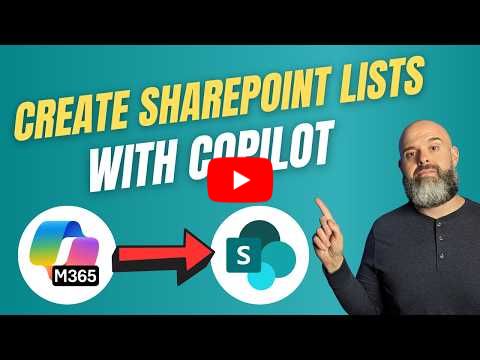
Instead of embedding screenshots or GIFs in this edition, I've published a YouTube walkthrough that shows this capability in action from start to finish.
In the video, I cover:
- Creating a SharePoint list from scratch with a single prompt
- Modifying an existing list by adding new columns, including a Lookup column
- Creating items manually and in bulk from an Excel file
- Applying conditional formatting and building custom views
- The current limitations, including calculated columns and JSON view formatting
👉 Watch it below 👇
|
🧠 Final Thoughts
What stood out to me most about this capability isn't just that it can build a list, it's that it understands structure. Getting a Lookup column right on the first try, correctly pulling values from a separate list, is genuinely useful, not just a party trick. That said, the gap between "Copilot says it worked" and "the change actually applied" on the custom view formatting is worth remembering.
Partner Spotlight: Hiring Globally, Made Simple with Deel
If your role has ever expanded into hiring or managing contractors and employees outside your home country (and for a lot of us in the M365 and IT space, remote and global teams are becoming the norm), DEEL is worth knowing about.
It's a payroll and compliance platform that handles contracts, tax forms, and payments across 150+ countries, so you're not chasing down local labor law or wiring money manually. They also offer Employer of Record services if you want to hire full-time talent abroad without setting up a legal entity yourself.
I've used Deel myself, and it's genuinely proven useful. It takes a process that used to feel like a headache and makes it painless.
👉 Check out Deel and submit the contact form. A Deel rep will reach out to set up a scoping call and explore how Deel might be able to help.
Enjoyed This Content?
If you found this content helpful, consider showing your support by Buying Me a Coffee. Your generosity helps cover the costs of the tools and services I use to create valuable content and keep it coming your way. Thank you for your support!
Got Questions or Ideas? Let's Connect!
Are you facing a challenge with a Microsoft 365 app? Have a tutorial idea you'd like to see covered? Or perhaps you're looking for personalized coaching and guidance to make the most of Microsoft 365? If so, just hit the reply button and get in touch—I’d love to hear from you! Your feedback and ideas help shape the content I create, ensuring it’s tailored to your needs. Let's work together to boost your productivity and tech skills!
Looking for a Previous Tip? 🔎
Did you know? You can quickly find all past editions of the 🧭Microsoft 365 Compass🧭 newsletter in one place! Just visit this section on my website — no need to dig through your inbox. Catch up on tips, tricks, and tutorials anytime! 🚀


Responses