
In this edition of the 🧭 Microsoft 365 Compass 🧭 newsletter, we're exploring the new HTML pages feature in SharePoint Online, and how you can use Copilot (or any AI tool) to build modern, interactive pages that look nothing like a traditional intranet.
For years, building a visually rich SharePoint page meant working within the limits of web parts or bringing in a developer for custom SharePoint Framework (SPFx) solutions. HTML pages change that. You can now describe the page you want to Copilot, or upload an HTML file you've built elsewhere, and SharePoint hosts it right alongside your regular site pages.
Note: Creating and editing HTML pages with Copilot requires a Microsoft 365 Copilot licence. Without one, you can still create HTML pages in another AI tool and upload them. Site owners also control whether HTML pages are allowed through the "Allow HTML files" setting in the Site Pages library.
What Are SharePoint HTML Pages?
HTML pages are full web pages, written in HTML, CSS and JavaScript, that SharePoint renders as site pages. They're stored in the Site Pages library like any other page, so they follow the same permissions, publishing and version history you already know.
There are two ways to create one:
- With Copilot: select New, then HTML page, and describe what you want. Copilot builds the page as a draft.
- By uploading: create the HTML in any AI tool (or by hand) and upload it to the Site Pages library.
That distinction matters, because it makes the feature accessible to almost everyone. Copilot users get the fastest path, but anyone can take part.
Building a Page with Copilot, Step-by-Step
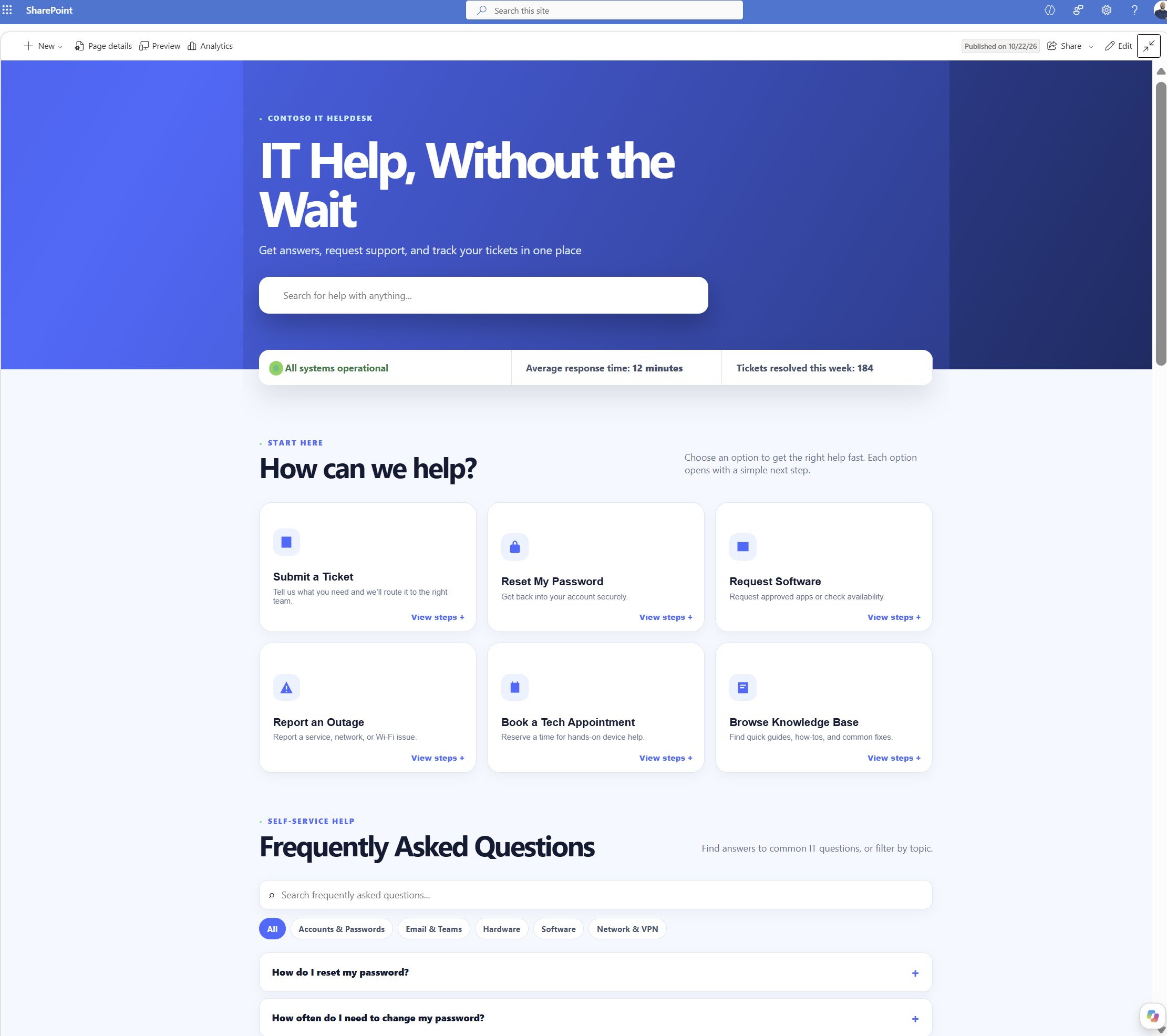
To put the feature to the test, I built an IT Helpdesk page using three prompts, each one showing a different capability.
- Start with a strong first prompt. I asked Copilot for a bold, modern helpdesk home page with an animated hero section, a working search box, a status strip, expandable help tiles and a scrolling announcement banner. The result looked more like a product website than an intranet page.
- Refine it with content from a document. I pointed Copilot at an FAQ Word document stored on the site and asked it to add a Frequently Asked Questions section with filter chips and instant search. Copilot pulled the questions and answers in and built the interactive section around them.
- Connect it to live data. I asked Copilot to add an office network map that reads directly from a SharePoint list. When I changed an office's status to "Outage" in the list, the map updated after a refresh. If you want to go deeper on this capability, check out my earlier walkthrough on building live-linked dashboards with SharePoint HTML.
What I appreciated most is that the page stays editable. Copilot doesn't lock you out of the result. You can click into elements and adjust them yourself, or keep refining with follow-up prompts.
Using HTML Pages Without a Copilot Licence
If you don't have Copilot, you can build HTML pages in ChatGPT, Claude or any other generative AI tool, then upload them through the Site Pages library. In practice, uploaded pages behave exactly like Copilot-built ones.
There's one step you shouldn't skip. SharePoint runs HTML pages under strict security rules. External scripts, fonts, images and network calls are blocked, and a page that breaks these rules can simply render blank with no error message.
Microsoft publishes the rules at yourtenant.sharepoint.com/_html (replace "yourtenant" with your organization's tenant name). Copy that page into your AI tool along with your prompt, and it will generate HTML that SharePoint can actually load.
Watch the Full Walkthrough
Instead of embedding screenshots or GIFs in this edition, I've published a YouTube walkthrough that shows SharePoint HTML pages in action from start to finish.
In the video, I cover:
- Creating an HTML page with Copilot from a single prompt
- Adding an interactive FAQ section from a Word document
- Building an office map that's live-linked to a SharePoint list
- Uploading an HTML page built with another AI tool
- Using Microsoft's /_html instructions page to make AI-generated HTML SharePoint-compliant
👇👇 Watch the full walkthrough on YouTube 👇👇
|
🧠 Final Thoughts
HTML pages are one of the most meaningful shifts in SharePoint page design I've seen in years. They give site owners a genuine on-ramp to building custom, interactive experiences without SPFx development. What excites me most is the live-data connection: pages that reflect what's in a SharePoint list move the intranet from static content to something closer to a lightweight app. My one hope is that Microsoft surfaces clearer error messages when a page breaks the rules, because a blank page with no explanation is a frustrating place to start troubleshooting.
I'd also love your input:
👉 Would you use HTML pages for your intranet home pages, or keep them for specific use cases like dashboards and FAQs?
👉 How would your organization govern who can create and upload HTML pages?
👉 What would you build first if you could connect a page to any SharePoint list?
As always, just hit reply — I read every message!
Enjoyed This Content?
If you found this content helpful, consider showing your support by Buying Me a Coffee. Your generosity helps cover the costs of the tools and services I use to create valuable content and keep it coming your way. Thank you for your support!
Got Questions or Ideas? Let's Connect!
Are you facing a challenge with a Microsoft 365 app? Have a tutorial idea you'd like to see covered? Or perhaps you're looking for personalized coaching and guidance to make the most of Microsoft 365? If so, just hit the reply button and get in touch—I’d love to hear from you! Your feedback and ideas help shape the content I create, ensuring it’s tailored to your needs. Let's work together to boost your productivity and tech skills!
Looking for a Previous Tip? 🔎
Did you know? You can quickly find all past editions of the 🧭Microsoft 365 Compass🧭 newsletter in one place! Just visit this section on my website — no need to dig through your inbox. Catch up on tips, tricks, and tutorials anytime! 🚀


Responses