
In this edition of the 🧭 Microsoft 365 Compass 🧭 newsletter, we're exploring skills in SharePoint, a new capability that lets you teach Copilot a business process once and have it follow those same steps every time.
I've been testing skills for a few weeks now, and I genuinely believe they're one of the most meaningful shifts we've seen in SharePoint in a long time. For years, digitizing a process meant building a custom workflow in Power Automate, which is powerful but often out of reach for everyday users. Skills open that door to anyone who can describe a process in plain language.
Note: Creating and running skills in SharePoint requires a Microsoft 365 Copilot license.
The Problem Skills Solve
If you use Copilot regularly, you've probably noticed a pattern. Every time you ask it to do something, you start from scratch. You type the prompt, explain the task, and hope you get the same result as last time.
That works for one-off questions. It doesn't work for repeatable business processes, where consistency matters and several people on a team need to get the same outcome.
What Is a Skill?
Think of a skill as a standard operating procedure for Copilot. You write the instructions once, save them to your SharePoint site, and Copilot follows the same steps every time someone runs it.
A skill isn't code. It's plain language, saved as a simple file, and it typically includes:
- A name and description that tell Copilot what the skill does and when to use it
- Inputs that describe what the skill should work with, such as files in a specific folder
- Steps that list what Copilot should do, in order
- Outputs and rules that define what the skill produces and any guardrails, like "never estimate numbers"
Site Skills vs. Personal Skills
It's worth drawing a distinction between the two types of skills, because it changes who benefits.
- Site skills are stored on a SharePoint site. Anyone with access to that site, and a Microsoft 365 Copilot license, can run them. One person builds the skill and the whole team benefits.
- Personal skills are stored in your OneDrive and follow you across sites, which makes them a great on-ramp to skills for individuals.
In practice, site skills are where things get interesting for teams. They turn one person's know-how into a shared, repeatable process.
Skills Are Managed Like Any Other SharePoint File
One detail I really appreciate is that site skills live directly on the site, in a Skills folder under Agent Assets in Site Contents. Each skill gets its own folder with a SKILL.md file you can open and review.
Because they're stored in SharePoint, skills also have version history. You can see what changed, continue improving your skills over time, and roll back if an update doesn't work as expected. You can even update a skill just by asking Copilot to change it.
See Skills in Action
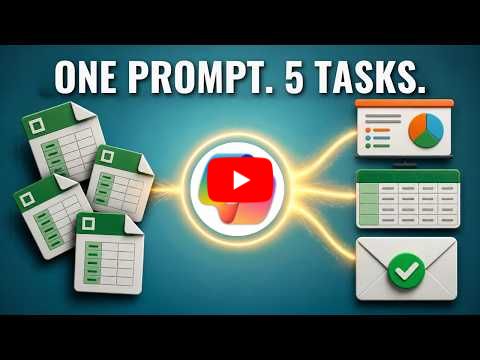
Instead of embedding screenshots or GIFs in this edition, I've published a YouTube walkthrough that shows skills in action from start to finish.
In the video, I build a single skill that handles a monthly regional sales roll-up, and I cover:
- How to create a site skill just by chatting with Copilot
- How the skill reads multiple Excel files, renames them and files them into folders by period
- How it extracts the data and logs it to a SharePoint list
- How it builds a summary PowerPoint deck from a template and emails the results
- Where skill files are stored, how version history works, and how to update a skill with Copilot
👇 Check it out below 👇
|
A Few Things to Keep in Mind
Skills are new, and there are a few things I noticed while testing:
- Copilot asks for confirmation before taking actions like renaming files, moving them or creating list items. This is a good thing. It keeps you in control of every change.
- Emails can take a moment to arrive. In a few of my test runs, Copilot reported that the email wasn't sent, yet it arrived shortly afterwards.
- Specific instructions produce better results. Naming the exact library, folder and list in your skill reduces friction and guesswork.
None of these are blockers. They're just part of learning how to write good skills.
🧠 Final Thoughts
What excites me most about skills is who they're for. For years, the gap between "I know how this process should work" and "I can automate it" was filled by Power Automate expertise. Skills narrow that gap significantly, and I think we're going to see a lot of business users start digitizing processes that were never worth building a flow for. I'd love to see Microsoft add scheduled or event-based triggers next, so a skill could run automatically when new files land in a folder.
I'd also love your input:
👉 What's one process in your organization you'd turn into a skill first?
👉 Do you see skills replacing some of your simpler Power Automate flows, or working alongside them?
👉 Would you like a follow-up edition on writing better skill instructions?
As always, just hit reply — I read every message!
Enjoyed This Content?
If you found this content helpful, consider showing your support by Buying Me a Coffee. Your generosity helps cover the costs of the tools and services I use to create valuable content and keep it coming your way. Thank you for your support!
Got Questions or Ideas? Let's Connect!
Are you facing a challenge with a Microsoft 365 app? Have a tutorial idea you'd like to see covered? Or perhaps you're looking for personalized coaching and guidance to make the most of Microsoft 365? If so, just hit the reply button and get in touch—I’d love to hear from you! Your feedback and ideas help shape the content I create, ensuring it’s tailored to your needs. Let's work together to boost your productivity and tech skills!
Looking for a Previous Tip? 🔎
Did you know? You can quickly find all past editions of the 🧭Microsoft 365 Compass🧭 newsletter in one place! Just visit this section on my website — no need to dig through your inbox. Catch up on tips, tricks, and tutorials anytime! 🚀


Responses