
In this edition of the 🧭 Microsoft 365 Compass 🧭 newsletter, we're exploring a new Copilot feature in OneDrive that lets you attach an AI-generated summary to a file when you share it, so your recipients always know what's inside before they even click the link.
When you share a file with a colleague, there's often an unspoken expectation on the receiving end: the person has to open it, skim it, and figure out whether it's relevant before they can act on it. For a quick report or a set of meeting notes, that's a small but real friction point that adds up across a busy day.
Microsoft addressed that directly with a new Copilot-powered update in OneDrive for Windows. You can now generate a file summary with Copilot and include it in the share notification, right at the moment you share. Your recipient gets the key points upfront, without ever having to open the file first.
Note: This feature is currently available for Windows users via File Explorer and the OneDrive Activity Center. A Microsoft 365 Copilot license is required.
What This Feature Does
When you go to share a OneDrive file in Windows, you'll now see an option to generate a Copilot summary. Copilot reads the file and produces a concise summary, which is bundled into the share notification sent to your recipient.
Think of it as a built-in briefing note. Instead of sharing a 20-page report and hoping the other person has time to read it, you can include a summary that tells them what matters before they ever click the link. This works for the kinds of files people share most: proposals, reports, policy documents, meeting notes, and project updates.
How to Share a File with a Copilot Summary
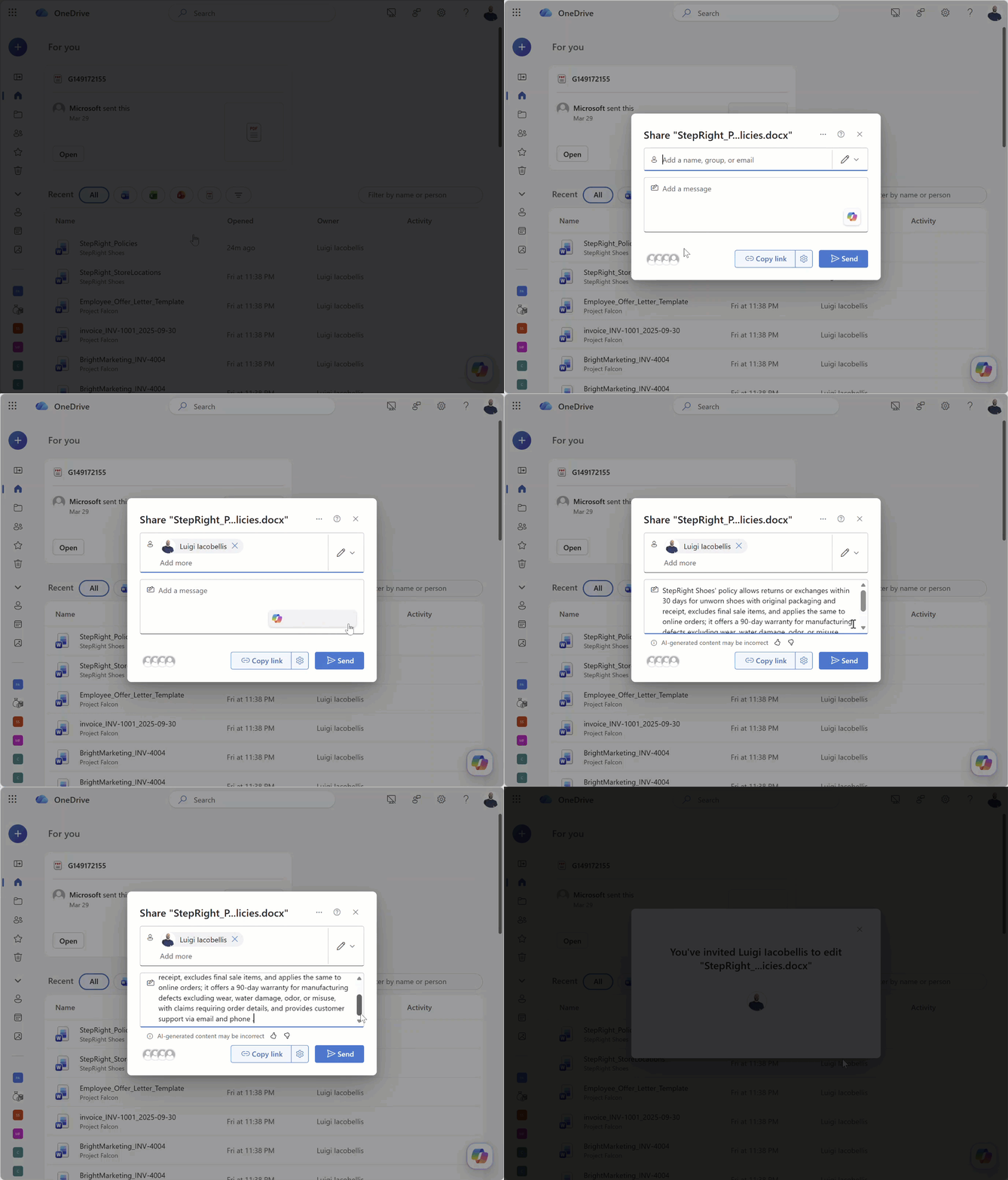
Here's how to use the feature from OneDrive on the web:
- Right-click the file or select the three-dot menu and choose Share.
- In the share dialog, hover over the Copilot icon in the message box and select Insert file summary with Copilot.
- Review the generated summary, then click Send when you're ready to share the file with your recipient.
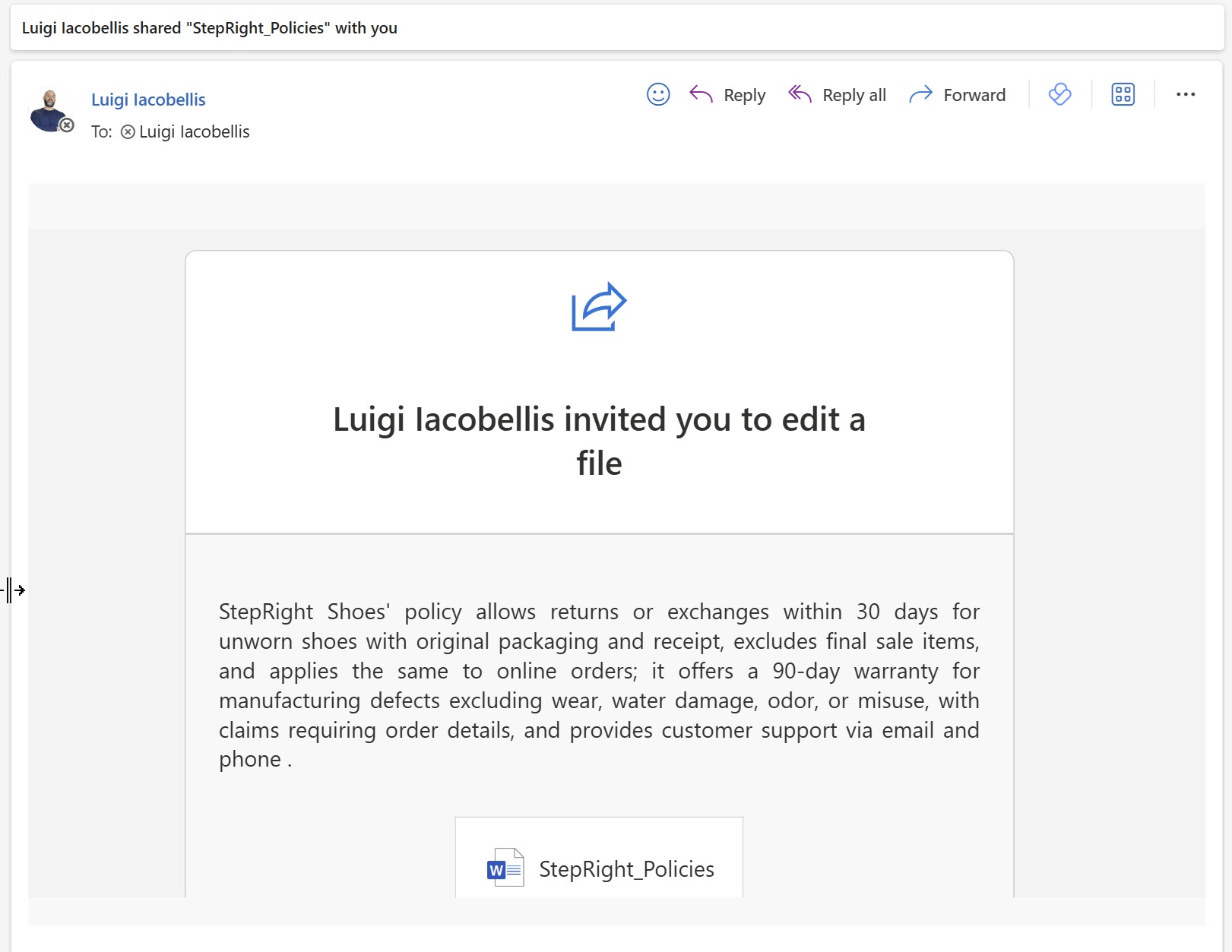
Below is a snippet of the share notification the recipient receives, including the custom file summary generated by Copilot.
Note that if you have OneDrive synced to File Explorer, you can also do this directly from there using the same right-click Share menu.
Current Limitations
A few things worth noting before you rely on this feature day to day:
- Windows only for now: The feature is available via File Explorer and the OneDrive Activity Center on Windows. Other platforms are expected to follow.
- Requires a Microsoft 365 Copilot license: This is not part of the base Microsoft 365 subscription.
- Summary reflects the file at time of sharing: If the document changes after you share it, the summary will not update automatically.
- Best results with structured files: Copilot performs best on files with clear headings and organized content. Very short files or highly visual documents may produce simpler summaries.
🧠 Final Thoughts
This feature may not be the most headline-grabbing Copilot update of the year, but it is one that can help save you time. Sharing files is something everyone does dozens of times a week, and adding a Copilot-generated summary to the workflow is exactly the kind of low-friction, high-value assist that makes Copilot feel genuinely useful in daily work. I would love to see Microsoft extend this to Mac and web soon, and eventually to Teams file sharing as well, where the same friction exists.
I'd also love your input:
👉 Do you find yourself writing manual notes or summaries when you share files with colleagues today?
👉 Would your team use this most for internal document sharing, client-facing files, or both?
👉 Are there other file-sharing friction points in Microsoft 365 you would like to see Copilot tackle next?
As always, just hit reply — I read every message!
A Tool Worth Trying
From time to time I like to share tools I'm actively testing outside of the Microsoft 365 world, and this one is worth knowing about.
Gamma is an AI-powered tool that lets you create polished presentations, documents, and websites from a simple text prompt in under a minute. No design skills required. You describe what you need, and it handles the structure, layout, and visuals. It's genuinely fast, and the output is far more refined than you'd expect for a first draft.
It has a free plan, so there's no reason not to try it.
Enjoyed This Content?
If you found this content helpful, consider showing your support by Buying Me a Coffee. Your generosity helps cover the costs of the tools and services I use to create valuable content and keep it coming your way. Thank you for your support!
Got Questions or Ideas? Let's Connect!
Are you facing a challenge with a Microsoft 365 app? Have a tutorial idea you'd like to see covered? Or perhaps you're looking for personalized coaching and guidance to make the most of Microsoft 365? If so, just hit the reply button and get in touch—I’d love to hear from you! Your feedback and ideas help shape the content I create, ensuring it’s tailored to your needs. Let's work together to boost your productivity and tech skills!
Looking for a Previous Tip? 🔎
Did you know? You can quickly find all past editions of the 🧭Microsoft 365 Compass🧭 newsletter in one place! Just visit this section on my website — no need to dig through your inbox. Catch up on tips, tricks, and tutorials anytime! 🚀


Responses