
In this edition of the 🧭Microsoft 365 Compass🧭 newsletter, we’re exploring one of the most powerful new capabilities in SharePoint Online — the Knowledge Agent. Think of it as Copilot for SharePoint — a built-in AI assistant that can organize your document libraries, automatically extract metadata, and even answer questions about your files.
If you’ve ever spent time manually tagging documents or creating columns for things like Invoice Number, Payment Terms, or Due Date, this feature will save you hours. The Knowledge Agent can analyze your library, identify key fields, and populate them automatically using AutoFill columns powered by AI.
Before you begin, keep in mind that this feature is currently available in public preview and must be enabled by your SharePoint Administrator. You’ll also need an active Microsoft 365 Copilot license in order to use the Knowledge Agent. And if you’d like a more in-depth walkthrough showing exactly how to use it, be sure to check out the video tutorial I published below.
|
What Is the SharePoint Knowledge Agent?
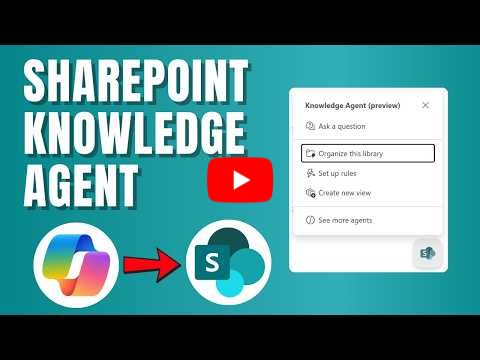
The SharePoint Knowledge Agent is an AI-powered feature that helps you manage and organize files within document libraries. Once enabled, you’ll notice a Knowledge Agent icon in the bottom-right corner of your library.
Clicking it opens a Quick Actions menu with options like:
-
Organize this library – to analyze files and create AutoFill columns
-
Ask a question – to query content in natural language
-
Set up rules – to automate workflows and notifications

For this guide, we’ll focus on how to use the Organize this library option to set up AutoFill columns — one of the most practical ways to automate metadata in SharePoint.
How to Create AutoFill Columns in SharePoint
When you choose Organize this library, the Knowledge Agent scans your existing files and suggests up to three columns based on your content.
For example, if your library contains invoices, SharePoint might automatically suggest columns such as:
-
Invoice Number
-
Invoice Date
-
Payment Terms

Each suggested column includes an AutoFill prompt, which is a set of AI instructions that defines what information should be extracted from your documents. From here, you can review, remove, or edit each suggestion before saving.
How to Edit an AutoFill Prompt for Better Results
Editing an AutoFill prompt gives you control over exactly what the AI extracts from your files.
Here’s how to refine an existing prompt:
-
Click Edit next to the column name (for example, Payment Terms).
-
Modify the AutoFill Prompt to be more specific about what you want extracted.
-
Use the Preview Results option to test across multiple files.
-
Click Save when you’re happy with the results.
Example of an improved prompt:
“Extract the credit payment terms (e.g., Net 30, Due upon receipt) from the document. Exclude payment method details such as EFT, wire transfer, or account numbers.”

How to Add a New AutoFill Column in SharePoint
You don’t have to rely solely on the suggestions from the Knowledge Agent — you can create your own custom columns by entering a new prompt directly.
Here’s an example prompt that extracts a summary from invoices:
“Extract a short summary of the goods or services being invoiced. Keep it concise — one sentence or phrase. Exclude prices, quantities, and payment details.”
Once you enter your prompt, click Send, and the Knowledge Agent will automatically create a new column using the extracted data. When you’re finished setting up your columns, click Save changes and choose whether to add them to your current or a new view.

Tips for Getting Consistent Results with AutoFill Prompts
Generative AI is non-deterministic, meaning that running the same prompt on the same files may produce slightly different results each time.
To achieve the most consistent and accurate extractions:
-
Test prompts across multiple files.
-
Reword prompts that produce inconsistent results.
-
Periodically review extracted metadata for accuracy.
Why the Knowledge Agent Is a Game Changer for SharePoint
The SharePoint Knowledge Agent transforms how teams manage content.
Instead of relying on users to manually tag and classify documents, it leverages AI to automatically generate metadata that keeps libraries searchable, structured, and compliant. In my experience, this is one of the most practical and impactful uses of AI within SharePoint today. It streamlines information management, improves data quality, and helps organizations get more value out of their content without extra effort.
💬 Your Turn
I’d love to hear what you think:
👉 Have you started experimenting with the Knowledge Agent yet?
👉 Would you like me to cover how to use it for creating SharePoint rules or custom views next?
👉 Should I create a short GIF-based mini tutorial series to demonstrate each use case?
Just hit Reply — I read every message!
Enjoyed This Content?
If you found this content helpful, consider showing your support by Buying Me a Coffee. Your generosity helps cover the costs of the tools and services I use to create valuable content and keep it coming your way. Thank you for your support!
Got Questions or Ideas? Let's Connect!
Are you facing a challenge with a Microsoft 365 app? Have a tutorial idea you'd like to see covered? Or perhaps you're looking for personalized coaching and guidance to make the most of Microsoft 365? If so, just hit the reply button and get in touch—I’d love to hear from you! Your feedback and ideas help shape the content I create, ensuring it’s tailored to your needs. Let's work together to boost your productivity and tech skills!
Looking for a Previous Tip? 🔎
Did you know? You can quickly find all past editions of the 🧭Microsoft 365 Compass🧭 newsletter in one place! Just visit this section on my website — no need to dig through your inbox. Catch up on tips, tricks, and tutorials anytime! 🚀


Responses