
In the last edition, we explored Copilot Memory — how Copilot can retain useful context over time to reduce friction and deliver more relevant responses. Today, I want to continue that theme by focusing on a closely related feature that’s just as powerful — but often overlooked:
Copilot Custom Instructions.
On the surface, Custom Instructions seem simple. In practice, they fundamentally change how Copilot behaves every single time you use it.
A Quick Personal Note
I hope you’ve all been well — and thank you for your patience. It’s been an incredibly busy start to the new year, both personally and professionally. I appreciate you sticking around. My goal moving forward is to publish a new edition every 2–3 weeks and continue building this newsletterpart in a practical, structured way. Now, let’s get into it.
What Are Copilot Custom Instructions?
Custom Instructions allow you to tell Copilot how you want it to think, respond, and behave by default — without repeating yourself in every prompt.
Instead of constantly typing things like:
-
“Keep responses concise.”
-
“Use step-by-step instructions.”
-
“Tailor examples for knowledge workers.”
You define those preferences once — and Copilot applies them automatically going forward.
Think of it this way:
-
Copilot Memory manages what Copilot remembers.
-
Custom Instructions define how Copilot uses that information.
Memory is context. Instructions are behavior.
Why This Matters More Than You Think
Many people experience Copilot inconsistently because:
-
Every prompt starts from scratch
-
Expectations shift from one interaction to the next
-
Copilot doesn’t know your preferred depth, format, or working environment
Custom Instructions quietly solve this problem.
Once configured, Copilot:
-
Responds in a consistent tone and structure
-
Aligns more closely with your role and use cases
-
Requires fewer follow-ups and clarifications
The benefit isn’t flashier responses. It’s less friction and more flow. And over time, that consistency compounds.
Where to Configure Copilot Custom Instructions
You can set this up directly in Copilot settings:
-
Open Copilot
-
Click the “…” menu in the top-right corner
-
Go to Settings
-
Select Personalisation
-
Click Custom Instructions
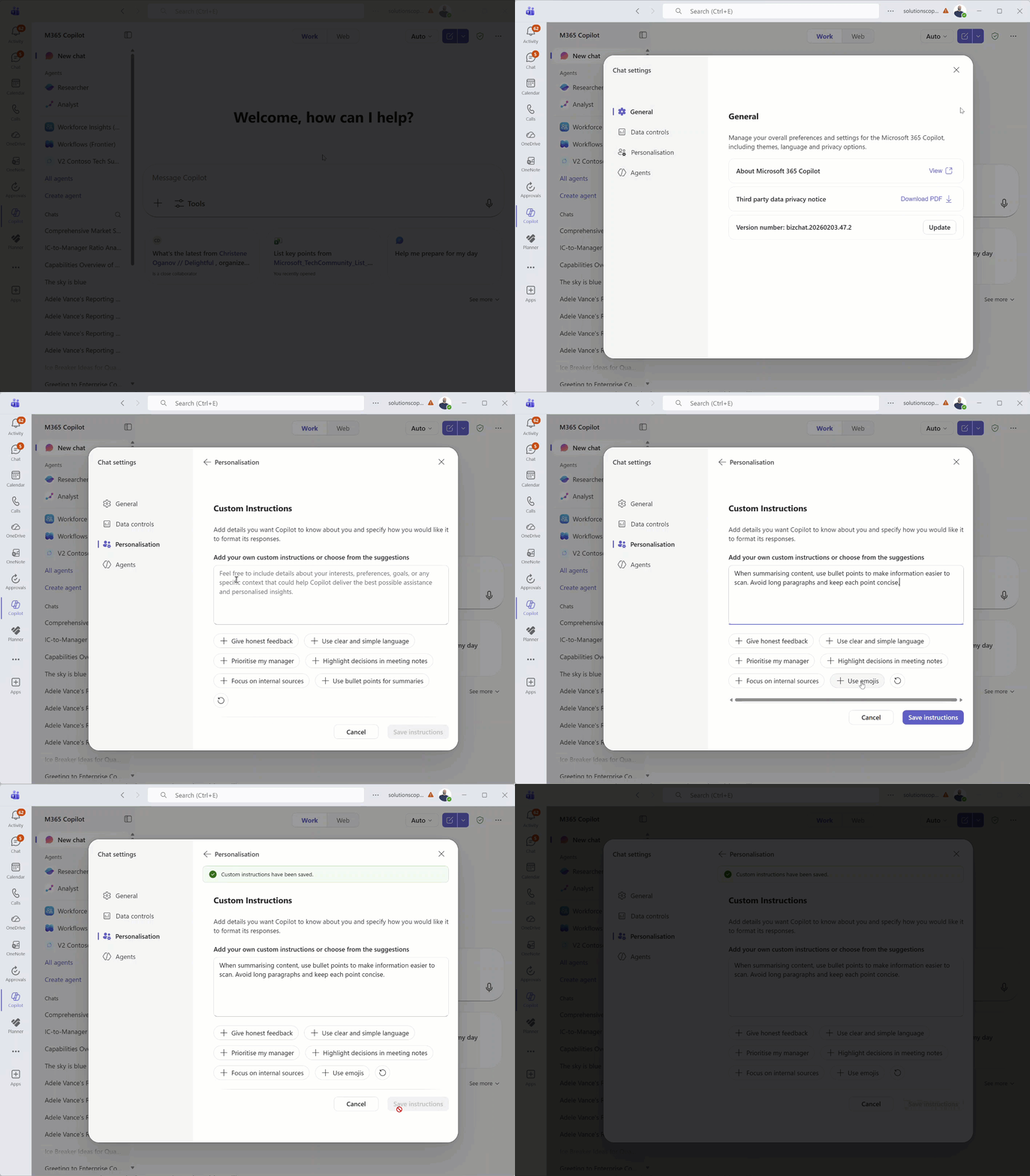
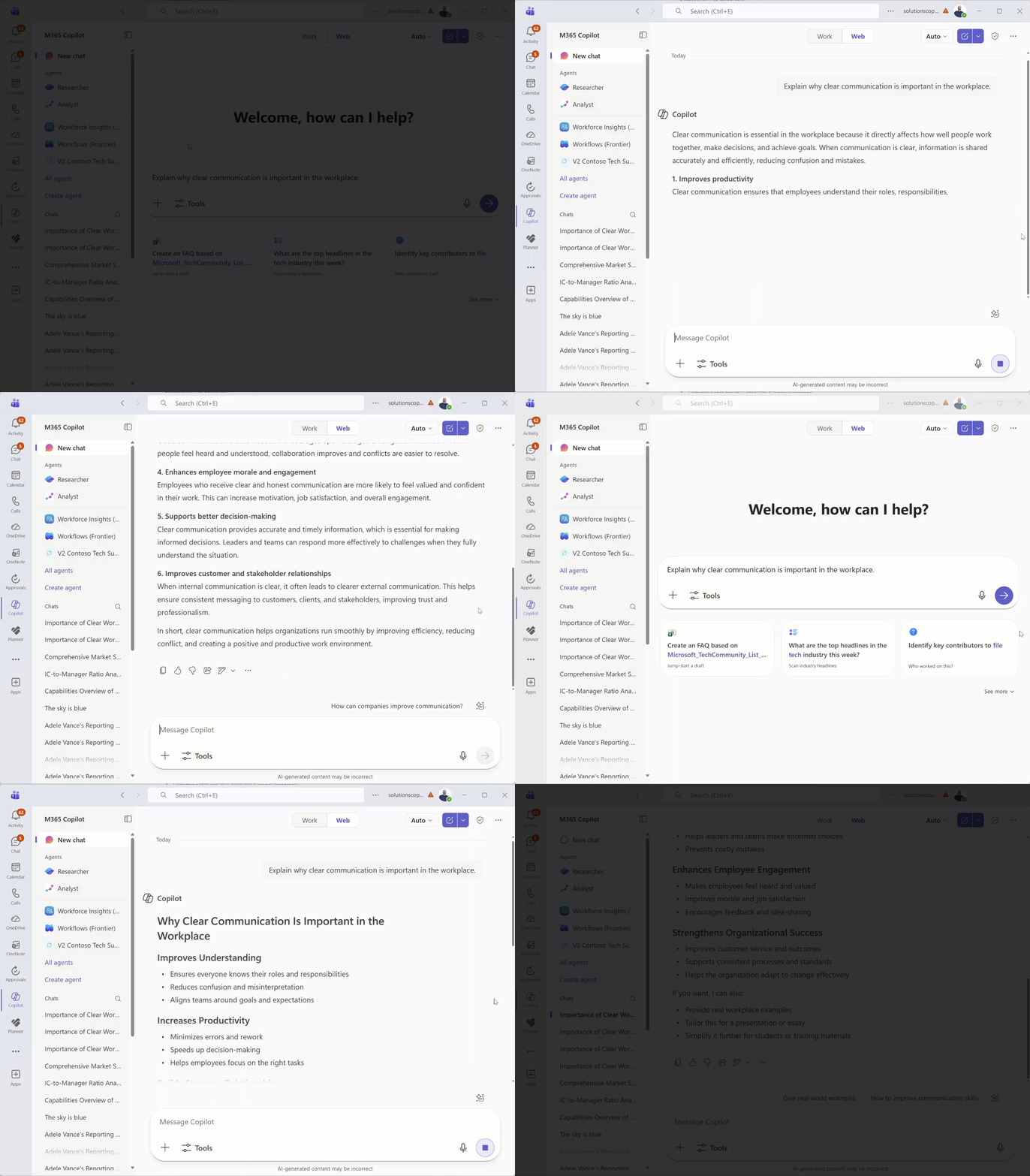
To demonstrate how this can save time in practice, I asked Copilot:
“Explain why clear communication is important in the workplace.”
As you’ll see in the clip below, the initial response is fairly lengthy and delivered in multiple paragraphs. I then added the following Custom Instructions:
Always respond using clear, well-structured bullet points.
Use short, direct statements.
Avoid long paragraphs unless I explicitly request them.
Use headings when helpful to organize the response.
After saving those instructions, I ran the exact same prompt again. This time, the response was structured in concise, organized bullet points — much easier for me to scan and absorb. The key difference is that I didn’t need to send a second follow-up prompt asking Copilot to reformat the answer. One small instruction, applied automatically every time going forward — and that’s where the time savings begin to compound.
A Simple Mental Model
If you’re explaining this to someone else, here’s an easy framework:
-
Copilot Memory = What Copilot remembers
-
Custom Instructions = How Copilot behaves
When you use both together, Copilot starts to feel less like a generic chatbot — and more like a personalized assistant that understands how you work.
Wrapping Up
Copilot Custom Instructions may seem like a small setting, but they play a meaningful role in reducing everyday friction when working with Copilot. By defining how you want responses structured and delivered, you spend less time correcting formatting, refining tone, or sending follow-up prompts — and more time focusing on the substance of the work itself. The real power shows up when Copilot consistently adapts to how you prefer to think and consume information, rather than requiring you to re-explain those preferences every time.
So here’s something to consider: what small instruction could you set today that would quietly improve every interaction you have with Copilot going forward?
As always, if you have questions or want to share how you’re using Copilot in your day-to-day work, just hit Reply — I read every message.
Enjoyed This Content?
If you found this content helpful, consider showing your support by Buying Me a Coffee. Your generosity helps cover the costs of the tools and services I use to create valuable content and keep it coming your way. Thank you for your support!
Got Questions or Ideas? Let's Connect!
Are you facing a challenge with a Microsoft 365 app? Have a tutorial idea you'd like to see covered? Or perhaps you're looking for personalized coaching and guidance to make the most of Microsoft 365? If so, just hit the reply button and get in touch—I’d love to hear from you! Your feedback and ideas help shape the content I create, ensuring it’s tailored to your needs. Let's work together to boost your productivity and tech skills!
Looking for a Previous Tip? 🔎
Did you know? You can quickly find all past editions of the 🧭Microsoft 365 Compass🧭 newsletter in one place! Just visit this section on my website — no need to dig through your inbox. Catch up on tips, tricks, and tutorials anytime! 🚀


Responses