
First off, I want to wish you a very happy and prosperous New Year! 🎉
I’m hoping that 2026 will be filled with many blessings for you and your family. Welcome to the first edition of the 🧭 Microsoft 365 Compass 🧭 newsletter for 2026.
In this edition, I want to showcase one of those minor—but surprisingly impactful—Copilot improvements that can make you more productive by reducing friction when working with Copilot. We’re starting with Copilot Memory.
Individually, this feature may seem small. In practice, it fundamentally improves how useful Copilot feels in day-to-day work.
PS — Before We Dive In…
Before we jump into today’s edition, I wanted to share something I’ve been working on quietly behind the scenes.
Over the past few months, I’ve had a lot of thoughtful conversations and growing interest in coaching and training on how to effectively use Copilot across Microsoft 365 for knowledge workers. Those conversations inspired me to start building a short Copilot email course focused on practical, real-world scenarios, delivered in a simple and approachable format.
The course will include 5–10 brief emails, sent once per day, similar in style and depth to this newsletter. I’ll be launching it with limited spots, so if you’re interested in being notified when it opens, you can click the link below.
👉 Get notified when the Copilot email course launches
Why Personalization Matters in Copilot
One of the most common complaints I hear about Copilot is "“It works… but I keep having to repeat myself.”
Repeat your role.
Repeat your preferences.
Repeat formatting instructions.
Repeat tone.
Microsoft is actively addressing this problem by allowing Copilot to learn what matters to you—without forcing you to restate the same context every time. That’s where Copilot Memory comes in.
Copilot Memory: Let Copilot Remember What Matters
Copilot Memory allows Copilot to remember details from your conversations so it can personalize future responses.
This isn’t about storing documents or sensitive content. It’s about remembering patterns, preferences, and context that reduce repetitive back-and-forth.
What Copilot Memory Can Remember
Copilot Memory allows Copilot to retain helpful context so it can personalize future responses.
Examples of the types of information Copilot can remember include:
-
Your role (manager, analyst, consultant, etc.)
-
Your preferred level of detail
-
The tools you regularly use (such as Excel, Power Automate, Teams, or Word)
-
The types of outputs you typically want
-
Other relevant organizational or contextual details
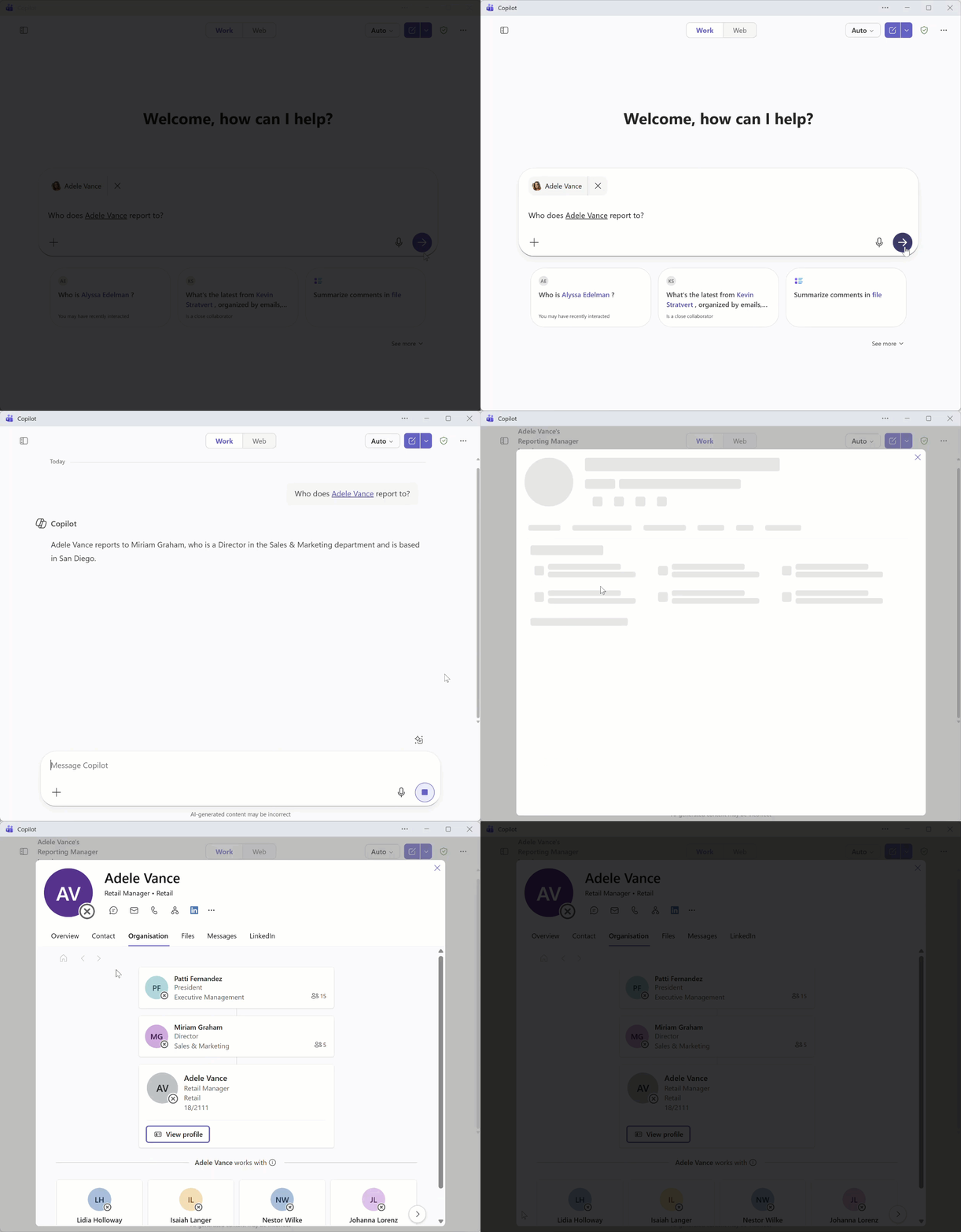
You can also explicitly tell Copilot what to remember during a chat. For example, in the first clip below, I ask Copilot who my colleague Adele Vance reports to. Copilot uses organizational data from Microsoft 365—such as the org chart—to correctly identify her reporting structure.
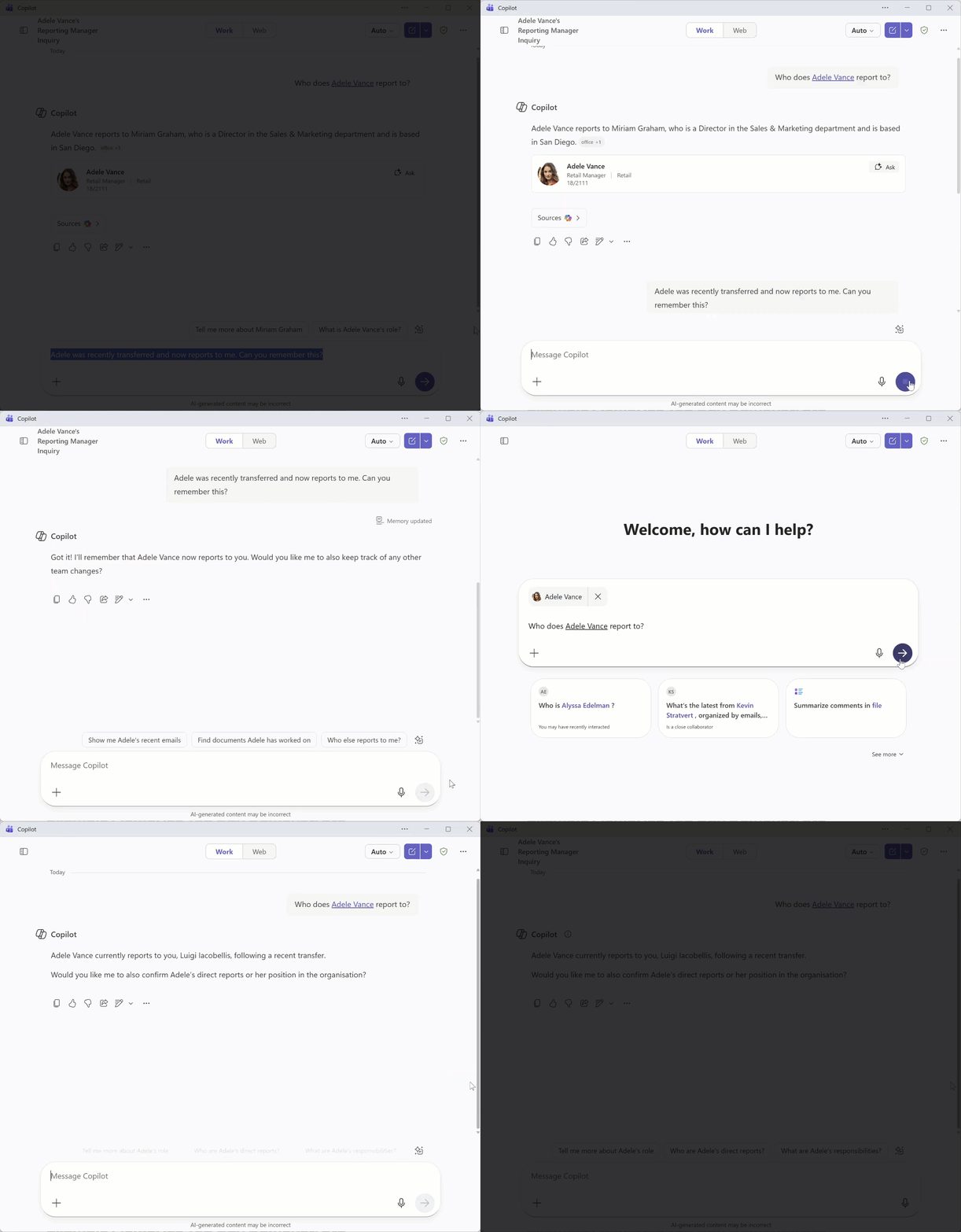
In the next clip, I tell Copilot that Adele was recently transferred and now reports to me, and I explicitly ask Copilot to remember this update. You’ll notice a confirmation in the chat that says “Memory updated.” When I start a new chat and ask the same question again, Copilot correctly remembers and reflects the updated reporting relationship.
Reviewing and Modifying Copilot Memory
At any time, you can review and manage what Copilot has remembered about you—including deleting memories that are no longer relevant. This helps ensure Copilot is always using the most up-to-date context when generating responses.
To review Copilot Memory, open any Copilot interface and click the three dots (…) in the upper-right corner, then select Settings. From there, go to Personalization and choose Copilot Memory. You’ll see a list of the memories Copilot has retained.
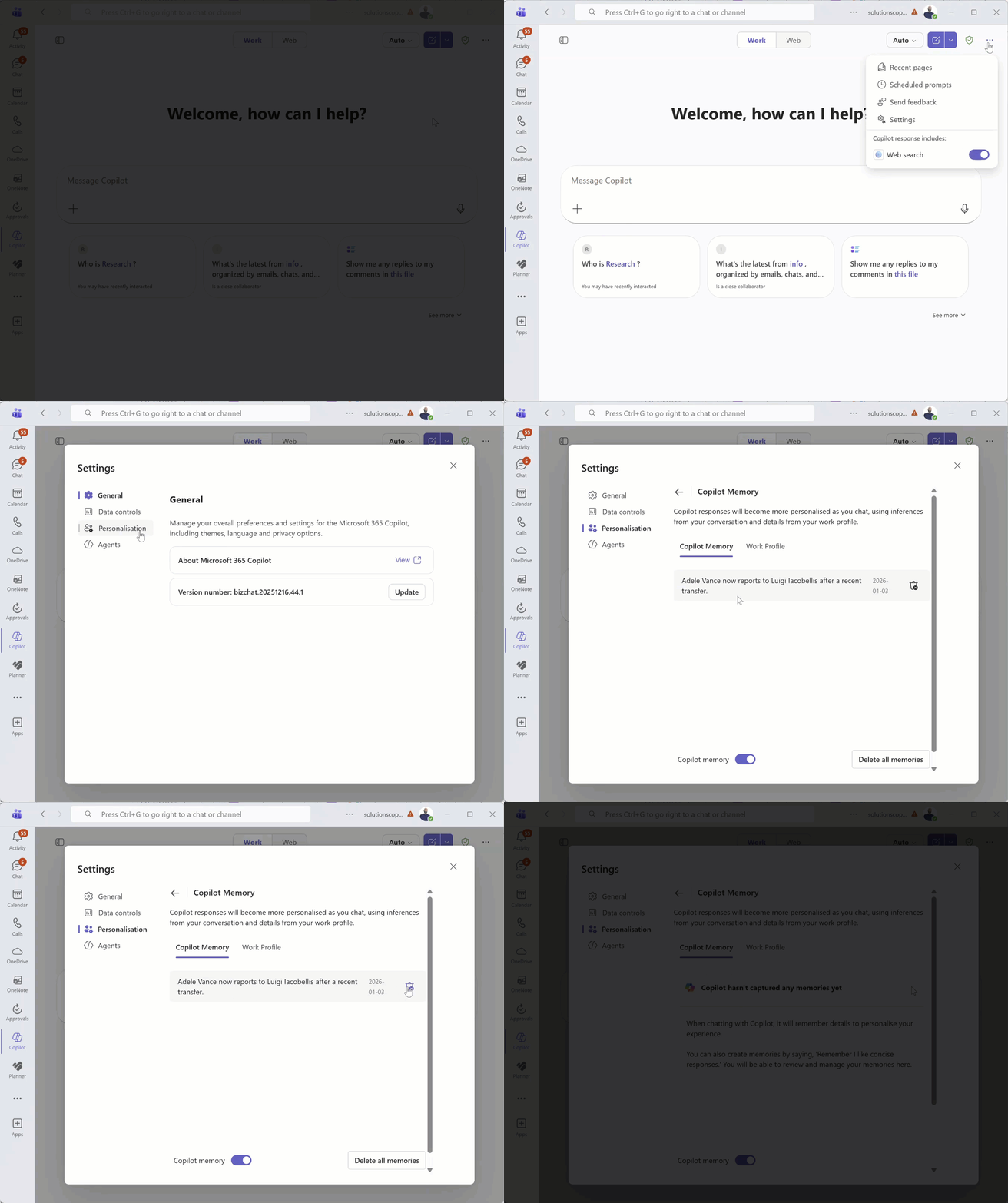
If you want to remove a specific memory, simply click the delete icon next to it. This gives you full control over what Copilot remembers and ensures its responses stay accurate and relevant over time.
Wrapping Up
Copilot Memory may seem like a small feature, but it plays a big role in reducing everyday friction when working with Copilot. By allowing Copilot to remember your preferences, context, and working style, you spend less time repeating yourself and more time using the output with confidence.
The real power comes when Copilot starts adapting to how you work—rather than forcing you to adapt to it.
👉 Stay tuned for Part 2, where we’ll build on this foundation and take a closer look at Custom Instructions, and how you can intentionally shape how Copilot responds right from the start.
As always, if you have questions or want to share how you’re using Copilot in your day-to-day work, just hit Reply—I read every message.
Enjoyed This Content?
If you found this content helpful, consider showing your support by Buying Me a Coffee. Your generosity helps cover the costs of the tools and services I use to create valuable content and keep it coming your way. Thank you for your support!
Got Questions or Ideas? Let's Connect!
Are you facing a challenge with a Microsoft 365 app? Have a tutorial idea you'd like to see covered? Or perhaps you're looking for personalized coaching and guidance to make the most of Microsoft 365? If so, just hit the reply button and get in touch—I’d love to hear from you! Your feedback and ideas help shape the content I create, ensuring it’s tailored to your needs. Let's work together to boost your productivity and tech skills!
Looking for a Previous Tip? 🔎
Did you know? You can quickly find all past editions of the 🧭Microsoft 365 Compass🧭 newsletter in one place! Just visit this section on my website — no need to dig through your inbox. Catch up on tips, tricks, and tutorials anytime! 🚀


Responses